
Picture Editor
Galaxy studio appsBeauty
4.889.00 Reviews
- Version
- 2.1.2
- Installs
- 1.00M
- Age Rating
- Everyone
Screenshots
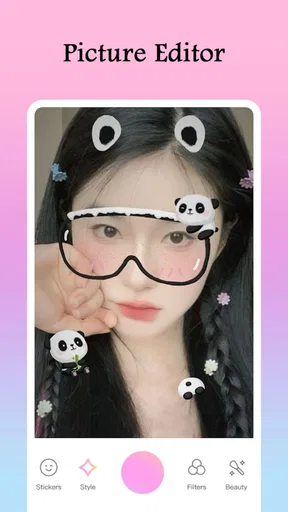
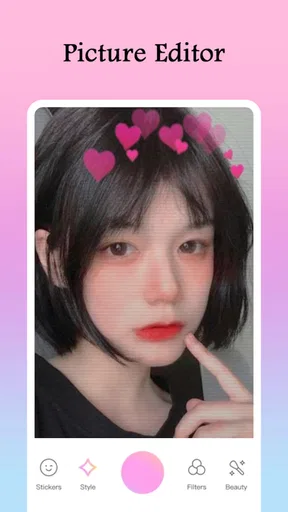
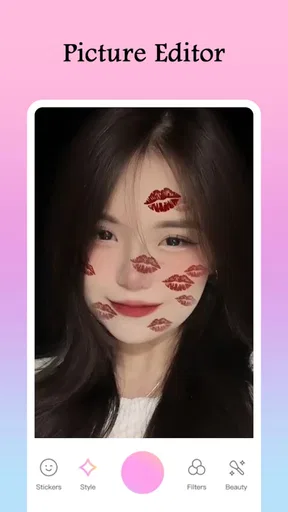
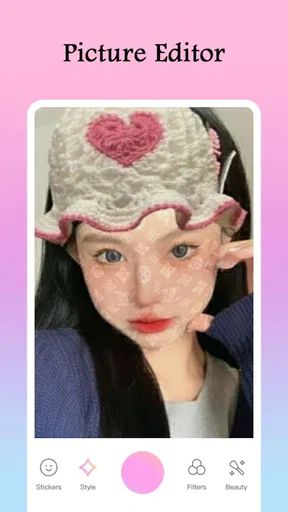
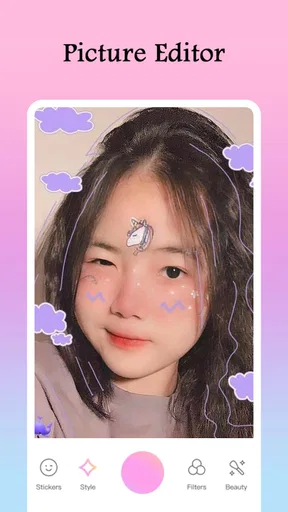
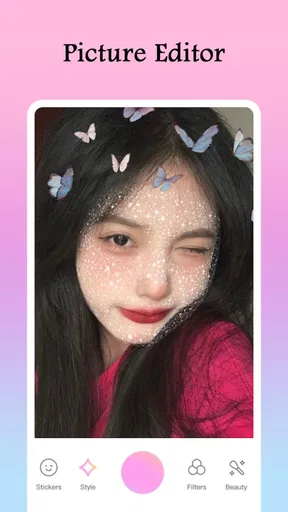
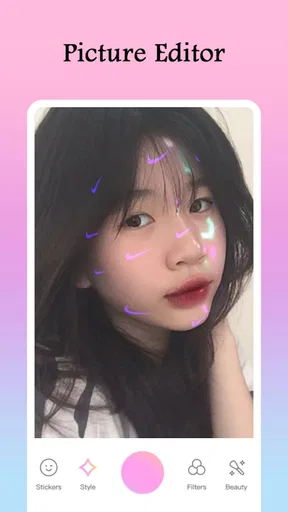
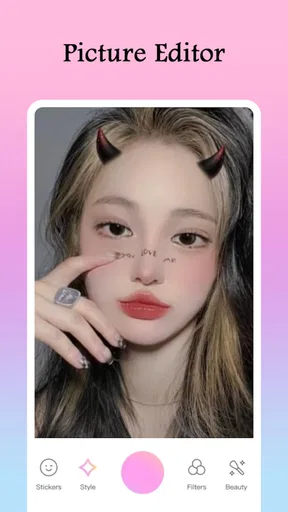
Our Review of Picture Editor
 Analysis by Appyee
I approach any beauty photo editor with two questions: can I make a picture look the way I want without a long learning curve, and do I understand what happens when I open, edit, and share it? Picture Editor, made by Galaxy studio apps, is aimed at quick visual changes—filters, stickers, and other effects—rather than a complicated, studio-style workflow. That focus makes it appealing for casual edits, but I would still take a moment to check the choices shown on my device before handing over a personal photo.
A quick editor for everyday photos
Picture Editor is a free Android app in the beauty category, and its familiar mix of effects and picture-editing tools is easy to understand at a glance. It has a 4.8 average from around 16,000 ratings and has passed one million installs, so it has attracted a substantial audience. Those figures suggest that many people find it useful, but they are not a substitute for deciding whether its particular editing style fits your own needs.
The app is rated for Everyone, runs on Android 5.0 or later, and its current version is 2.1.2. It is developed by Galaxy studio apps. The basic download is free, with in-app purchases ranging from $0.99 to $99.99 per item, so I would check the purchase prompts before confirming anything if I only wanted to make a quick edit. That combination makes it easy to try, while leaving room for paid options that may not be necessary for occasional use.
What I would check before editing
Photos can contain more than a face or a nice background: they may show a home, a workplace, a child, or details that identify where someone is. I would choose a harmless test picture first and pay attention to the screens the app presents when I select an image, save a result, or try a sharing option. Those moments are useful checkpoints: I can see what access the phone requests and decide whether the action makes sense for the edit I am doing.
I would not treat an attractive filter or a smooth editing flow as evidence about how an app handles personal images. Instead, I would make choices based on the prompts and controls actually visible on my device. If I am unsure about a permission, I can pause rather than approve it automatically, then decide whether that access is needed for the task in front of me. For especially private photos, a built-in phone editor may feel like the more comfortable starting point.
How the editing experience fits real life
I find that the most useful way to judge a casual photo editor is to try it on an ordinary picture before trusting it with anything personal. For a quick portrait or a playful birthday image, I’d decide in advance what I want to change and keep the original handy; that makes it easier to tell whether the result actually improves the photo. It also gives me a natural moment to review the app’s visible prompts and choices before moving on to saving or sharing.
Useful edits without a long learning curve
For a quick portrait, I would start with a subtle filter and small brightness or contrast changes, then compare the result with the original before saving. The temptation with beauty effects is to keep adding adjustments until skin and color look artificial. A lighter touch usually works better for a profile picture that still needs to look like the person in it. Stickers and frames make more sense for playful posts, invitations, or a greeting image than for a professional headshot.
One practical workflow is to make a copy of the photo before experimenting, if the app or your phone offers that choice. Then try one change at a time: a filter, a retouch, or a caption. This makes it easier to spot which adjustment helped and to back away from one that did not. I would also check the edges after adding a frame or sticker; decorative elements can cover a face, crop, or important detail when the image is later displayed in a different shape.
Where it sits beside other editors
Compared with the basic editor already on a phone, a dedicated beauty app can be more inviting when the goal is a stylized selfie, a sticker-covered snapshot, or a quick collage. The trade-off is that a built-in editor is often the simpler choice for a small correction when I do not need decorative effects or another app in my photo workflow. For careful color work, detailed masking, or repeatable professional edits, I would look for a more specialized photo editor instead of assuming this one is a full desktop-style replacement.
There is also a difference between making an image look polished and making it suitable for every destination. A picture that looks good on a social feed may be too heavily filtered for a work profile, and text that is readable on a phone preview may become tiny in a printed image. I would decide where the picture will be used before choosing effects, then review the saved result at a larger size if clarity matters.
Spending, sharing, and keeping control
Because the app is free to download but offers paid in-app items, I would treat optional purchase screens as a decision point rather than a routine part of editing. If a tool is presented as paid, I would weigh how often I expect to use it against the price shown at that moment. Someone who only wants an occasional crop or brightness tweak may be better served by the phone’s built-in tools, while a person who regularly makes playful portraits may find a dedicated editor more worthwhile.
Sharing is another point where I would slow down. Before posting a finished image, I would check the selected destination and look over the picture for names, location clues, or other details I did not mean to publish. If I am editing a friend’s photo, I would get their agreement before sharing it, especially when the result includes a noticeable beauty effect or a joke sticker. These simple checks give me more control without turning a casual edit into a complicated process.
Who is likely to enjoy it
I can see Picture Editor suiting someone who wants a friendly place to experiment with portraits, add decoration, and make social-ready images without learning advanced editing terminology. It may also be handy for a small personal project, such as assembling a few pet photos into a collage or adding a short caption to a birthday picture. The best results come when I have a clear idea of the final use and do not pile on every available effect just because it is there.
I would skip it, or at least compare alternatives first, if my priority were highly controlled retouching, a dependable professional workflow, or minimizing the number of apps that can access my pictures. It is also not the most sensible choice for someone who only needs occasional basic corrections and is already happy with the phone’s editor. The right fit depends less on how many effects are available than on whether I want this particular mix of decorative edits and quick portrait adjustments.
Getting Started with Picture Editor
First things first, let's talk about getting started. Downloading Picture Editor is a breeze. Just hop onto the App Store or Google Play, and you'll be editing your selfies in no time. The interface is super user-friendly, which is a huge win for those of us who aren't exactly tech wizards. It’s like the app just gets you, you know?
Features Worth Clicking About
Now, onto the fun part—what can this app actually do? Well, it’s packed with features that make your photos pop. Whether you're into filters, stickers, or just a little retouching magic, Picture Editor has got your back. You can adjust brightness, contrast, and saturation with just a few taps. Plus, the filters are pretty dope; there's something for everyone, from vintage vibes to modern aesthetics.
The app also offers a decent variety of stickers and frames. Perfect for those times you want to add a little extra flair to your pics. And if you're feeling creative, the text tool lets you add captions or quotes that can make your photos Instagram-ready in seconds.
Editing Like a Pro
What really sets this app apart is how professional the editing tools feel. You can use the brush tool for some precision editing or even dive into the blemish remover for those unexpected breakouts. The app's AI-powered tools do a surprisingly good job of keeping things natural, which is always a plus.
And let's not forget about the collage maker! Whether you’re piecing together vacation shots or your pet's cutest moments, the collage feature lets you create stunning layouts that are bound to get those likes rolling in.
Sharing and Saving Your Masterpieces
Once you've crafted your masterpiece, sharing it is a piece of cake. The app integrates seamlessly with social media platforms, so posting directly to Instagram, Facebook, or Twitter is just a tap away. You can also save high-resolution copies to your device, which is perfect for printing or just keeping your memories safe.
And if you’re the type who likes to keep things organized, the app’s gallery feature lets you sort and manage your photos easily. No more scrolling through endless camera roll chaos!
Wrapping Up the Picture Perfect Experience
In a nutshell, Picture Editor is a fantastic app for anyone looking to up their photo game. It’s loaded with features that are both fun and functional, making it a great choice for both beginners and seasoned photo editors alike. The intuitive design, combined with powerful editing tools, makes it a must-have for your app collection.
So, if you’re keen on turning your snapshots into stunning visuals, give Picture Editor a try. Trust me, your photo gallery will thank you!
Verdict
Strengths of Picture Editor
- Intuitive interface for easy editing.
- Wide range of filters and effects.
- Supports high-resolution images.
- Fast performance with minimal lag.
- Regular updates enhance features.
Limitations of Picture Editor
- Some features locked behind paywall.
- Occasional ads can be intrusive.
- Limited export formats available.
- Requires internet for some effects.
- No batch editing option.
Other Releases by Galaxy studio apps
View All
GPS Photo: With Location & Map
Travel & Local4.2

ArtFonts: Stylish Text
Personalization4.6

Word Office: Docs Reader
Productivity4.8

Credit Card : Wallet & NFC
Finance4.6
Similar Picks in This Category
View All
Beauty Makeup Editor & Camera
Photo & Video Editors - Instant Solution4.7

Perfect365: Face Makeup Editor
Perfect365, Inc.3.5

Mirror Plus - HD Mirror app
Digitalchemy, LLC4.8

Cute Lock Screen & Wallpapers
Prometheus Interactive LLC4.6

HD Camera for Android
One Music Player4.5

Phone Mirror app - True Mirror
Cards4.6
Frequently Asked Questions
What features does Picture Editor offer?
Picture Editor provides a wide range of features, including filters, cropping tools, brightness and contrast adjustments, and text overlays. It also supports multi-layer editing, allowing users to create complex images with ease. The app is designed to cater to both beginners and advanced users, making it versatile for different editing needs.
Is Picture Editor free to use?
Picture Editor offers a free version with basic features, which is perfect for casual users. However, for more advanced tools and ad-free experience, a premium subscription is available. The subscription unlocks additional filters, effects, and editing capabilities, providing a more comprehensive editing suite.
What platforms is Picture Editor available on?
Picture Editor is available for both Android and iOS devices. Users can download it from the Google Play Store or the Apple App Store. The app is optimized for smartphones and tablets, ensuring a seamless experience across different devices and screen sizes.
Does Picture Editor support RAW image editing?
Yes, Picture Editor supports RAW image editing, making it ideal for professional photographers who require high-quality editing tools. The app allows users to import RAW files and apply detailed adjustments, ensuring that the integrity and quality of the original images are maintained.
How user-friendly is Picture Editor for beginners?
Picture Editor is designed with an intuitive interface, making it highly user-friendly for beginners. It offers guided tutorials and tips within the app to help new users get started. Additionally, the simple drag-and-drop functionality and clear tool icons make the editing process straightforward and enjoyable for all skill levels.
